


On iOS 26 and later, open the first PDF in Apple's Preview app, tap the page count to show thumbnails, touch and hold a thumbnail, choose Insert from File and pick the second PDF. Its pages are added at that point, and you can drag thumbnails to reorder them. Apple only documents this in Preview, so on older iOS versions use an app such as ProperPDF, which merges several files at once for free.
Merge PDFs with Preview (iOS 26 and later)
- Open the first PDF in the Preview app.
- Tap the page count to show page thumbnails.
- Touch and hold the thumbnail where the other PDF should go.
- Choose Insert from File, then pick the second PDF.
- Drag thumbnails to fix the order, then share or save the file.
When Preview isn't enough
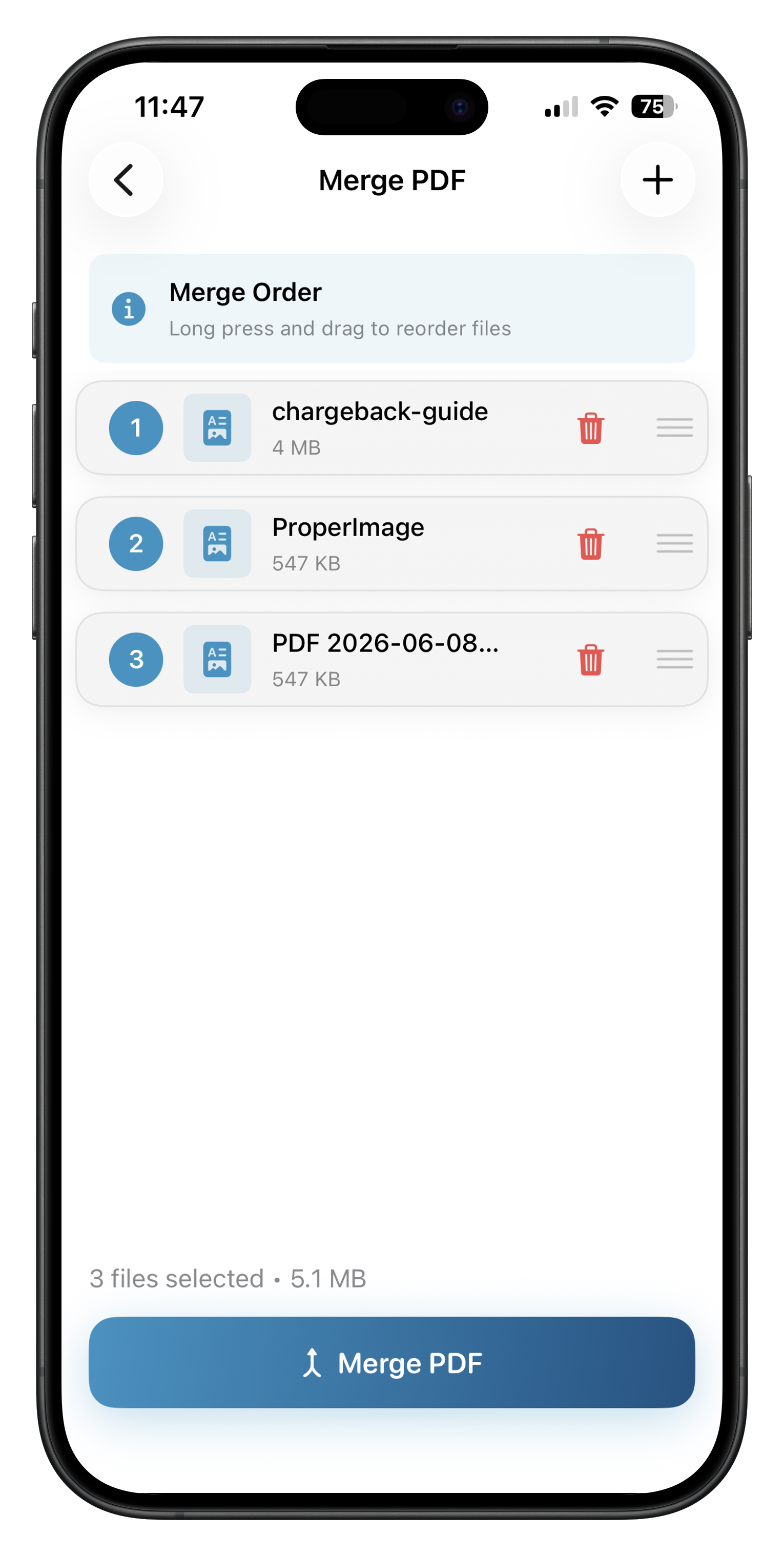
Preview inserts one file at a time, which gets slow with five or ten PDFs, and it isn't available before iOS 26. ProperPDF (iOS 17 and later) lets you pick several PDFs, drag them into order and merge them in one go, offline. Merging is free, with a watermark on the result unless you have Pro.
Merging in ProperPDF
Open Merge PDF, select the files, long-press and drag to set the order, and save. The merged file appears in your library and the originals are left as they were.
On Android
Google's own apps (Files by Google and Google Drive) don't merge PDFs. Use an app such as ProperPDF, which merges offline on Android 8.0 and later.
Questions
Can the Files app merge PDFs on iPhone?
Apple doesn't document a merge option in the iPhone Files app. Its documented route is the Preview app on iOS 26 and later.
Does merging in Preview upload my files?
Preview is a built-in app that edits files on your iPhone.
Sources
Checked 22 October 2026. Prices are US prices and change. ProperPDF uses regional pricing, so check the store for your local price.